How to Set Up Parental Controls on iPhone and Android
Why this question doesn't have one answer
Type "how to set up parental controls iphone and android" into a search bar and the results split immediately into two camps. One set of pages walks through Screen Time and stops there. Another walks through Family Link and stops there. Almost nothing on the first page of results treats the two as one job, because for the people writing that content, it usually isn't: most households own one platform, not two, and most guides get written for whichever the author happens to have in their pocket.
A parent trying to do this for real, often for two children on two different phones, or one child who will end up owning both a hand-me-down iPhone and a new Android at different ages, doesn't get to pick a side. Apple's own instructions are correct but version-gated: the child-exception-request screen exists only on iOS 26 and iPadOS 26, and Apple states plainly that "Age varies by country or region." Google, on its side, now documents two separate control systems for Android rather than one, and neither company's page mentions the other's.
The practical result is that a parent following one platform's official instructions gets a correctly configured phone, and a parent trying to do both from memory, switching between two sets of menus that share almost no vocabulary, is the one most likely to leave a gap on whichever device they finished second, tired, at the end of the evening.
What guessing, or buying twice, costs
The instinct to solve this with a paid, cross-platform app is reasonable. Here's what that instinct actually buys, compared with the free settings already on both phones:
| Option | Price | What it adds over Screen Time and Family Link |
|---|---|---|
| Bark | $5/month or $49/year (Jr), $14/month or $99/year (Premium), unlimited children and devices | An alerts dashboard, layered on top of, not instead of, each phone's own settings |
| Qustodio | Free single-device tier, $59.95/year up to 5 devices, $104.95/year unlimited | A dashboard across devices, same underlying mechanism |
| An iPhone-only paid course we found | $27 | iOS only, by the seller's own admission on their FAQ, a second purchase needed for the Android child |
| The First Phone Kit | $27, once | The sequence and the proof for both platforms, in the same pack. No dashboard, no second purchase |
Prices as listed by each vendor on 2026-09-09.
The bigger cost isn't the dollar figure at all. It's what a family in an active Reddit thread calls the settings that are "just gone (across all devices)" after a routine reset, or the Kidslox reviewer whose son deleted the app entirely and whose refund request was refused. Paying for a dashboard doesn't fix that. Reading the platform's own instructions, in order, and testing the result on the child's phone does.
What you'll have when you're done
- Each child's phone set up screen by screen, on whichever platform it runs, with a parent passcode the child does not have.
- Proof the limits actually bind: a test you run on the child's own device, not a settings screen that says it should work.
- A one-page family agreement, signed with the child in the room, covering both devices in one household.
- A written, named list of what neither platform's free tools cover, so nothing is a surprise later.
Budget about one evening per platform, not one evening total: our own estimate, not a measured figure. A household running both an iPhone and an Android is genuinely two separate jobs, each with its own screens, its own account requirements, and its own failure points.
The sequence, both platforms, side by side
TL;DR
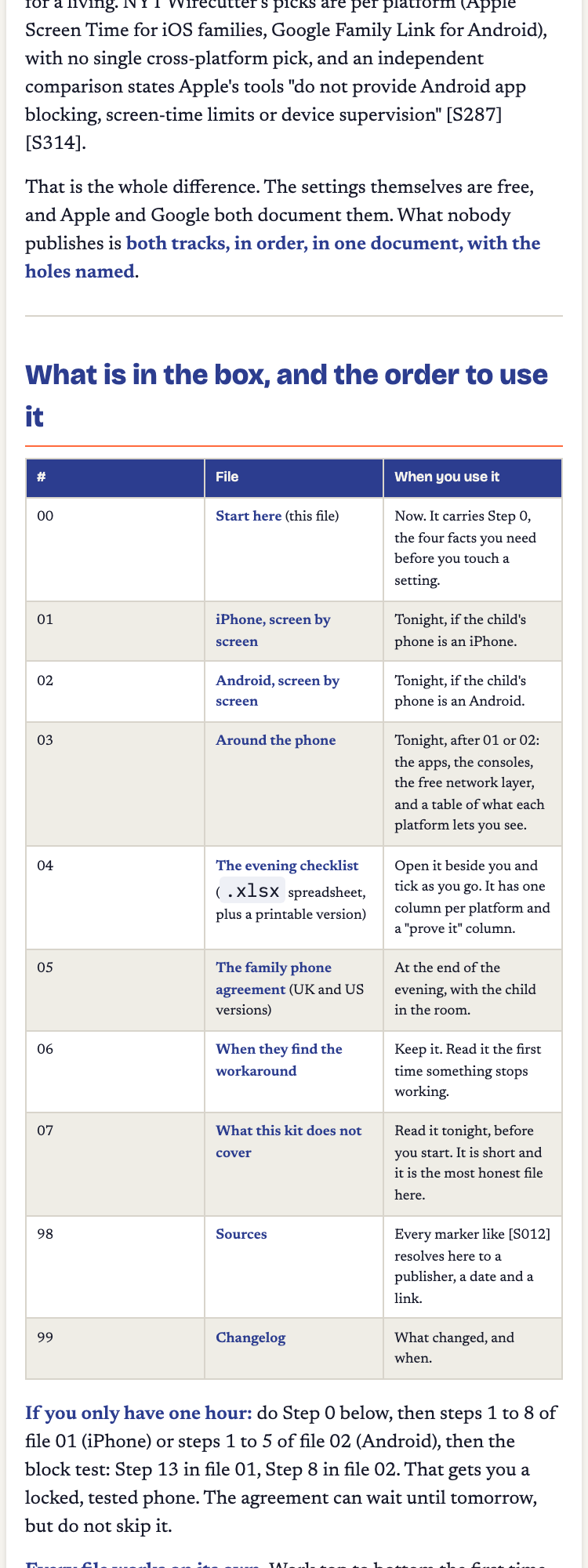
- Write down the exact OS version and account country on each phone before touching anything: the screens differ by both.
- Set your parent passcode, or your Family Link controls, before the child holds the phone again.
- Turn on purchase approval, then time limits, then content restrictions, in that order, on each platform.
- Close the one setting each platform needs to stop the child undoing everything above.
- Test that it holds on the child's own device, on both phones. This is the step almost everyone skips.
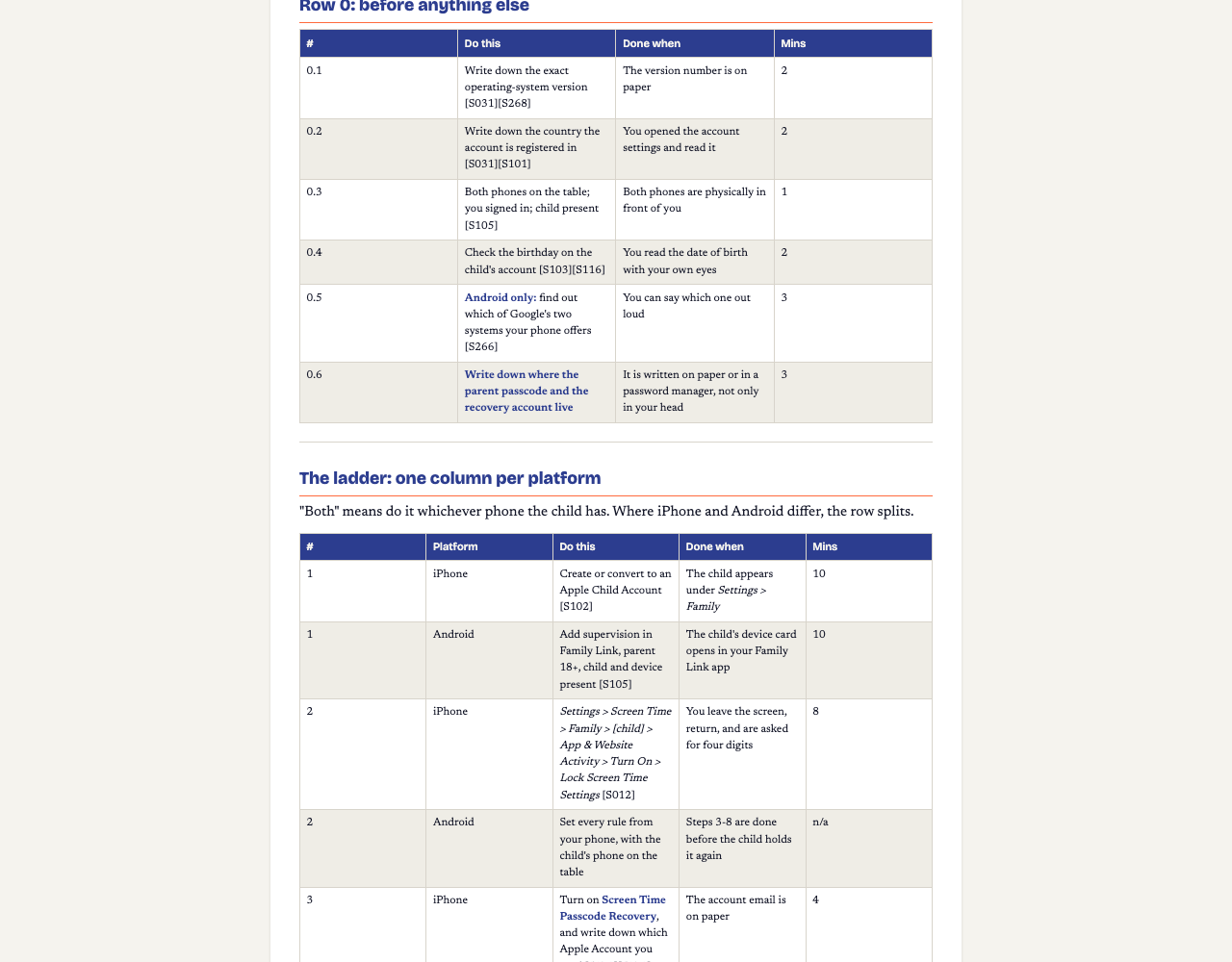
| Step | iPhone, Apple Screen Time | Android, Google Family Link |
|---|---|---|
| 1. Write down the version and the account country | Note the exact iOS or iPadOS version and the Apple Account's country before changing anything. The exception-request screen only exists on iOS 26 and iPadOS 26, and Apple's own page states "Age varies by country or region." | Note the exact Android version and the Google Account's country too. Family Link's setup screens and default age brackets shift the same way Apple's do, by version and by country. |
| 2. Create or convert to a supervised account | Convert to, or create, an Apple Child Account for a child under 13. | Add supervision to the child's Google Account. Google's own requirements state the parent must be 18 or over, and the child and the child's own device must both be present during setup. |
| 3. Set your own controls first | Go to Settings, Screen Time, the child under Family, Manage Screen Time, Lock Screen Time Settings, and enter a 4-digit passcode twice. Apple recommends turning on Screen Time Passcode Recovery in the same sitting, since its reset flow later asks for the Apple Account email and password used when the passcode was first set, which may not be the account currently signed in. | Set the parent-side Family Link controls before handing the phone back. There's no single lock screen equivalent to Apple's, so the phone shouldn't go back to the child until every row below is done. |
| 4. Turn on purchase approval | Turn on Ask to Buy. Apple's own page states "If you decline the request, no purchase or download will take place." | Turn on Family Link's app approval, so new installs and in-app purchases need the parent's sign-off from their own device. |
| 5. Set the time limits | Set Downtime and App Limits under Screen Time. | Go to the child, then Screen time, then Time limits. Turn on Daily limit, set the Weekly schedule, enter the time, apply it to all days, and confirm. |
| 6. Set the content restrictions | Turn on Content and Privacy Restrictions under Settings, Screen Time, Family, the child. | Set App limits for content-capable apps. For Chrome specifically, go to Controls, Google Chrome and Web, Manage sites. Google's own page warns that a single blocked or allowed URL "doesn't apply to sites that begin or end differently," so use a whole domain rather than one page for anything that matters. |
| 7. Close the one workaround each platform allows | Under Content and Privacy Restrictions, go to iTunes and App Store Purchases, Deleting Apps, Don't Allow, so the child can't simply remove whatever you just set up. | Turn off Developer Options and USB debugging on the child's device, then check on a schedule that they've stayed off. An independent security researcher has documented a named tool that strips Family Link's limits using a wired connection to a computer through exactly that door. |
| 8. Check the gap neither platform closes | Communication Limits govern the native Phone, Messages and FaceTime apps only. Apple's own page confirms parents "cannot read messages or monitor conversations" inside them, and a second, independent guide confirms Communication Limits do nothing inside WhatsApp, Snapchat, Instagram or Discord, each of which runs its own contact system. | The phone-level Family Link settings above don't reach inside every app either. Open each app the child actually uses and set its own controls separately. |
| 9. Test that it actually holds | Hand the child's phone back, open a browser on that device, go to screentime.report, and tap the app or category you just restricted. If the page fails to load, the block is on. Changes can take a few minutes to apply, so an immediate re-check can look broken when it isn't. Wait, then test again, on the child's own device, not yours. |
|
The hard part: proving it actually holds, on both phones
A settings screen that looks configured and a limit that's actually enforced are not the same thing, on either platform. One iPhone parent, in an active Reddit thread, reports that after a routine reset "the settings are just gone (across all devices) and the kids get unfettered access to everything again." A Kidslox reviewer's son deleted the monitoring app outright, and their refund request was refused. Neither failure is about which app was chosen. Both are about nobody testing the result on the device that mattered.
Two gaps are worth naming plainly rather than glossing over. First, on iPhone, Communication Limits reach the native Phone, Messages and FaceTime apps and nothing else, so a child who moves a conversation into WhatsApp or Discord is outside what Screen Time governs, by Apple's own design. Second, a UK children's charity states outright that filters can fail and a child may still see something upsetting at some point, and that whatever's set on the device or the home broadband stops applying the moment the child switches to mobile data, public WiFi, or a friend's connection. Neither of these is a reason to skip the setup. Both are reasons to run the block test above on the actual device, and to treat a green settings screen as a starting point, not a finished job.
Questions parents actually ask
Is a paid parental control app actually better than the free settings on iPhone and Android?
Usually not, on capability. Screen Time and Family Link are free, built into the phone, and documented directly by Apple and Google. What most parents are short of isn't a missing feature on either platform. It's a sequence, done in the right order, on both operating systems, then proven to hold on the child's own device.
My kid will just delete the app, or find a way to reset the phone.
That is the single most repeated complaint parents leave about paid monitoring apps. On iPhone the fix is one setting: Content and Privacy Restrictions, iTunes and App Store Purchases, Deleting Apps, Don't Allow. On Android it's turning off Developer Options and USB debugging and checking on a schedule that they've stayed off, since a documented bypass tool removes Family Link's limits through that exact door.
How do I know the block I just set is actually working?
Test it on the child's own device, not on your own phone or the settings screen. Open a browser on the child's phone, go to screentime.report, and tap the app or category you just restricted. If the page fails to load, the block holds. Give it a few minutes after saving a change before you test, since an immediate re-check can look broken when it isn't.
Is this a subscription? Can I get a refund?
One-time payment, $27, no monthly fee, covering both iPhone and Android in the same pack. It's a digital download with no refunds once delivered, and no free trial: a $0 preview is available in the same listing.
What does the kit NOT cover?
Named honestly rather than hidden: a printable list of bypasses beyond the two named on this page (the lists that circulate elsewhere are undated or contradictory), what to do about a second undisclosed phone, a script for retrofitting rules onto a phone that's already been open for months, WhatsApp's parental controls specifically, and a dated phased-access schedule. Each is a genuine gap across first-phone guides generally, this kit included, sourced honestly rather than glossed over.
Price, and what this doesn't cover
One-time purchase, both platforms in the same pack. No subscription, no recurring charge.
The First Phone Kit. Screen Time and Family Link, screen by screen, tested on each child's own phone, sourced, with the checklist and the signed agreement. One evening per platform, $27 once.
Sources (dated, checked 2026-09-09)
- Apple, Screen Time overview and paths: support.apple.com/en-us/108806 (updated 2026-07-01)
- Apple, Content and Privacy Restrictions and version/region notes: support.apple.com/en-us/105121 (updated 2026-04-21)
- Apple, Ask to Buy purchase approval: support.apple.com/en-us/105055 (updated 2026-07-01)
- Apple, setting the Screen Time passcode and Passcode Recovery: support.apple.com/en-us/126533 (updated 2026-06-12)
- Apple, Family Sharing overview for kids and teens ("cannot read messages or monitor conversations"): support.apple.com/en-us/119854 (updated 2026-07-01)
- Google, Family Link setup and the daily-limit path: support.google.com/families/answer/7101025
- Google, supervision setup requirements: support.google.com/families/answer/9055704
- Google, Family Link Chrome site controls: support.google.com/families/answer/7087030
- Bark, exact iOS path to stop app deletion: support.bark.us: stop app deletion (updated 2026-05-06)
- Bark, self-test that blocking is working: support.bark.us: testing that blocking works (updated 2026-06-13)
- Screenwise, the scope of Apple's Communication Limits: screenwiseapp.com: Communication Limits (page states "Updated 8/22/26")
- Bitdefender HOTforSecurity, the Android Family Link bypass and its countermeasure: bitdefender.com/hotforsecurity (2025-10-09, updated 2026-04-06)
- NSPCC, parental controls and their limits: nspcc.org.uk: parental controls
- Reddit r/ios, "settings just gone" thread: reddit.com/r/ios (2022-09-28)
- Google Play, Kidslox reviews (buyer language only): play.google.com: Kidslox
- Bark, official pricing: support.bark.us/en/articles/13460996-pricing
- Qustodio, free vs. premium tiers: qustodio.com: free vs. premium
- FCC, first-phone consumer guidance: fcc.gov/consumers/guides/your-kids-first-phone
- FTC, children's privacy and COPPA: ftc.gov: children's privacy (updated 2025-09-03)
- ICO, Children's Code: ico.org.uk: Children's Code (2020)
- UK Government, Online Safety Act collection: gov.uk/government/collections/online-safety-act