What Are the Best Parental Control Options for a First Phone?
Why this question is so hard to answer
It usually gets asked after the phone is already in the child's hands, not before, which is exactly the moment when a clear answer matters most and a forum thread is least likely to give you one:
"I need some type of parent control/monitoring app... What are the best options?" Posted by a parent in a Facebook community group, after what they described as realising "in an alarming way" that they should have been paying closer attention to a 14-year-old's online interactions. [S139]
The advice that comes back rarely agrees with itself. In one Mumsnet thread, a parent asking almost this exact question gets two different answers from two different people:
"Kidslox." One reply.
"Google family link lets you do all that op." The next reply, same thread.
A second thread pushes a parent who wanted to avoid a smartphone entirely toward the free option instead: "you can lock almost everything down on a smartphone - we use Google family link and the options are there to only allow specific apps." A third parent has already shortlisted three named products before asking which one is worth it: "Screen time limits or app restrictions (open to tools like Qustodio, Flashget or Family Link, if anyone has experience)."
Notice what's missing from every answer above: nobody says how, which screen, in which order, on which platform, checked against which version. That's the actual gap, and it's rarely about which app's name to type into the app store.
What guessing wrong actually costs
Here's what the recurring, paid options in this space actually charge, so "just pay for an app" can be weighed against what it buys:
| Option | Price | What it adds over the free settings |
|---|---|---|
| Bark | $5/month or $49/year (Jr); $14/month or $99/year (Premium), unlimited children and devices | Alerts and a dashboard: layered on top of, not instead of, the phone's own settings |
| Qustodio | Free single-device tier; $59.95/year up to 5 devices; $104.95/year unlimited | A dashboard across devices |
| ParentShield (UK, SIM-based) | GBP 5.99 to 39.99/month across five tiers | Call/text recording, network-level control: a different mechanism, not a phone setting |
| The First Phone Kit | $27, once | The sequence and the proof, for the settings you already own. No ongoing dashboard |
Prices as listed by each vendor on 2026-09-09.
One cost doesn't show up in a price list: the false confidence of having paid at all: a different Qustodio reviewer's verdict, verbatim: "This app doesn't work. Waste of money." Paying doesn't automatically buy working; it buys a company's dashboard sitting on top of the same underlying phone settings.
Which is the actual point: Screen Time and Family Link are not a lesser option waiting to be upgraded. They're free, and Apple and Google document them directly. What a family is usually short of isn't a better tool. It's a sequence, tested, in one place, for both iOS and Android.
What you'll have when you're done
- The child's phone set up screen by screen, on iPhone or Android, with a parent passcode the child does not have.
- Proof the limits actually bind, not a settings screen that says they should, a test you run on the child's own device.
- A one-page family agreement, filled in and signed by both of you: UK and US versions.
- A written, named list of what this plan does not cover, so nothing is a surprise later.
Budget about three hours in one sitting, for one child on one platform: our own estimate, not a measured figure. A household with one iPhone and one Android is two separate jobs, not one faster one: plan two evenings.
The sequence, step by step
TL;DR
- Write down the exact OS version and account country before touching anything: the screens differ by both.
- Set your parent passcode before the child ever sees the phone.
- Turn on purchase approval, time limits, and content restrictions in that order.
- Configure each app the child actually uses: the phone-level settings don't reach inside apps.
- Test that it holds on the child's own device. This is the step almost everyone skips.
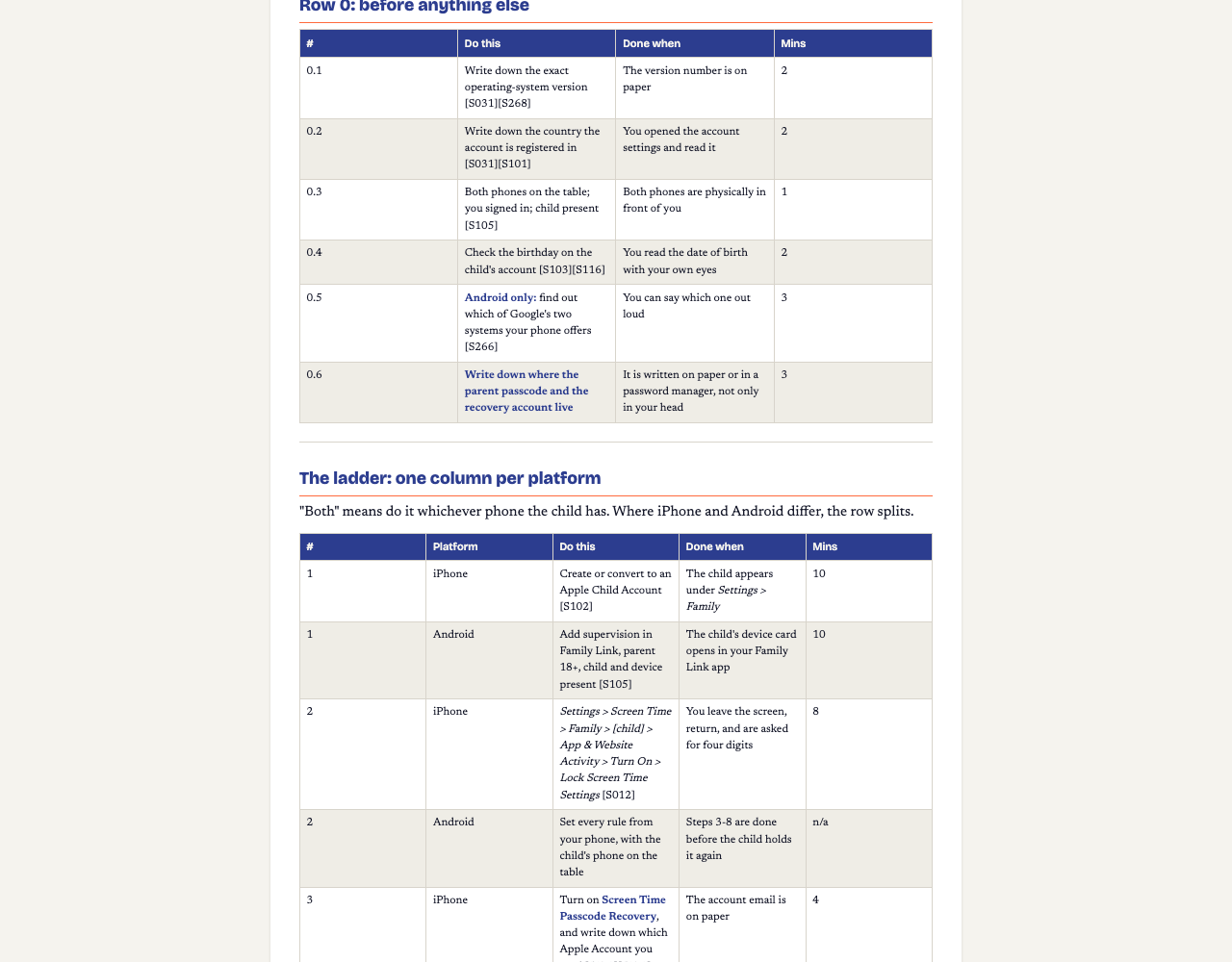
- Write down the OS and exact version, and the account's country. Apple documents a child-exception-request screen only on iOS 26 / iPadOS 26; an older iOS may not have it. Apple also states plainly: "Age varies by country or region."
- Create or convert to a supervised child account, an Apple Child Account under 13, or a Family Link-supervised Google account (parent 18+, child and device present).
- Set your parent passcode first, before the child holds the phone again. On iPhone: Settings → Screen Time → Family → [child] → App & Website Activity → Turn On → Lock Screen Time Settings.
- Turn on purchase and download approval everywhere the child can spend: Apple's Ask to Buy, Family Link's app approval.
- Set the daily limit, the weekly schedule, and per-app limits where the platform offers them.
- Set content and privacy restrictions.
- Configure every app the child actually opens, one at a time: YouTube, Instagram, Snapchat and others each have their own, separate setting.
- Add the free carrier-level layer most parents don't know exists: EE's Content Lock in the UK, Verizon Family or AT&T Secure Family in the US.
- Test that it actually holds. Bark's own support team publishes exactly this self-test for its own product: on the child's device, open a browser, go to a block-test page, and try to load the blocked content. If it fails to load, the block is working. The same logic applies to whatever you've just set: don't trust the settings screen, trust a failed page load on the child's own phone.
- Sign the one-page family agreement, with the child in the room.
The hard part: proving it actually holds
Settings that look configured and settings that are actually enforced are not the same thing, and this is the single most repeated failure in parent reports on every platform: "The settings are just gone (across all devices) and the kids get unfettered access to everything again," one iPhone parent reports after a routine reset. A Kidslox reviewer's son deleted the monitoring app outright, and their refund request was refused.
The fix isn't a better app. It's two extra steps almost nobody takes: (1) block deletion of whatever you install, under Content & Privacy Restrictions on iPhone; and (2) actually test the block on the child's device, the way Bark's own support team instructs its customers to test Bark. A setting you haven't tested is a guess.
Questions parents actually ask
Is a paid parental control app actually better than the free settings?
Usually not, on capability. Screen Time and Family Link are free, built into the phone, and documented directly by Apple and Google. The gap most parents hit is that nobody set them up in the right order, on both platforms, or tested that the limits hold, not a missing feature.
My kid will just find a workaround, or delete the app.
The most repeated complaint in parent reviews of paid monitoring apps. The fix is a specific setting (block app deletion) plus a self-test you run on the child's own device, not a different app.
Is The First Phone Kit a subscription? Can I get a refund?
One-time payment, $27, no monthly fee. It is a digital download with no refunds once delivered, and no free trial: a free $0 preview is planned in the same listing.
Does setting this up make me legally compliant with children's privacy law?
No. This page and the kit name and link the official pages (COPPA, the Take It Down Act, the UK Online Safety Act, the ICO Children's Code), and interpret none of them. A legal question specific to your household is a question for a qualified adviser.
What does the kit NOT cover?
Named honestly rather than hidden: a printable list of Screen Time bypasses (the ones that circulate are undated or contradictory), what to do about a second undisclosed phone, a script for retrofitting rules onto a phone that's been open for months, WhatsApp's parental controls specifically, and a dated phased-access schedule. Each is a genuine gap in what any publisher (not just this kit) has sourced to a standard worth trusting.
Price, and what this doesn't cover
One-time purchase. No subscription, no recurring charge.
The First Phone Kit. Both platforms, tested, sourced.
Sources (dated, checked 2026-09-09)
- Apple, Screen Time overview and paths: support.apple.com/en-us/108806 (updated 2026-07-01)
- Apple, Content & Privacy Restrictions and version/region notes: support.apple.com/en-us/105121 (updated 2026-04-21)
- Google, Family Link setup and paths: support.google.com/families/answer/7101025
- Google, supervision setup requirements: support.google.com/families/answer/9055704
- Apple, Ask to Buy purchase approval: support.apple.com/en-us/105055 (updated 2026-07-01)
- Bark, official pricing: support.bark.us/en/articles/13460996-pricing
- Qustodio, free vs. premium tiers: qustodio.com: free vs. premium
- ParentShield, SIM pricing tiers: parentshield.co.uk/sim-only
- EE, switching Content Lock on or off: ee.co.uk: Content Lock
- Verizon, Verizon Family FAQs: verizon.com: Verizon Family
- AT&T, Secure Family: att.com: Secure Family
- Bark, self-test that blocking is working: support.bark.us: testing that blocking works (updated 2026-06-13)
- Bark, stopping app deletion on iOS: support.bark.us: stop app deletion (updated 2026-05-06)
- Mumsnet, contradictory advice thread: mumsnet.com/talk (2022-11-28)
- Mumsnet, "lock almost everything down" thread: mumsnet.com/talk (2024-08-30)
- Reddit r/ScienceBasedParenting, three-tool shortlist: reddit.com/r/ScienceBasedParenting
- Facebook group, too-late discovery post: facebook.com/groups (2024-12-06)
- Trustpilot, Qustodio reviews (buyer language only: star rating not re-verifiable at time of writing): trustpilot.com/review/www.qustodio.com
- Google Play, Kidslox reviews (buyer language only): play.google.com: Kidslox
- Reddit r/ios, "settings just gone" thread: reddit.com/r/ios (2022-09-28)
- FCC, first-phone consumer guidance: fcc.gov/consumers/guides/your-kids-first-phone
- FTC, children's privacy and COPPA: ftc.gov: children's privacy (updated 2025-09-03)
- ICO, Children's Code: ico.org.uk: Children's Code (2020)
- UK Government, Online Safety Act collection: gov.uk/government/collections/online-safety-act